How to Test Your Logo Before Using It for Your Business
Testing a logo means checking whether it performs its intended jobs. It does not establish ownership, trademark clearance, or a guaranteed audience response. Use this sequence to find visible problems before investing in printing or replacing existing materials.
Define two real uses
Write down the first small placement and the first larger placement: for example, an account avatar and an invoice header. Record the background of each. These become your test cases, rather than vague goals such as “looks good everywhere.”
Use Alto to think through a reversed logo: light artwork works on its dark background, but a white invoice may need a dark companion version. Folio raises a different question: do the compass’s fine gaps remain visible when reduced?
Check the name without prompting
Show an exported sample to someone who has not been told the name. Ask what it says and what they notice first. Do not ask “does this look professional?”—a broad opinion is hard to turn into an edit.
If they misread a letter, compare another font or weight. If the symbol dominates and they miss the name, reduce it. This is informal feedback from the people you ask, not a representative market study.
Reduce to the smallest intended size
View the actual exported image at the size the destination uses. Check the name, narrow gaps, fine strokes, and tagline separately. If the complete arrangement fails, make a simpler version instead of enlarging the file and hoping the display will improve.
For an avatar, check the destination’s circular crop. For a document, place the image in a sample document and view it at normal reading size. A mockup is helpful context but does not reproduce every destination’s rendering.
Check surfaces and monochrome
Compare light and dark backgrounds in the editor using the preview control. Then open the downloaded file on the actual surface where it will appear. Remember that preview backgrounds are excluded from logo exports; an explicit Design background is included.
Print a black-and-white test or use a viewer’s grayscale option if available. If important edges vanish without color, add space or simplify the shapes. LogoDays does not include automatic grayscale conversion or print-color proofing.
Use each available mockup for a different question
- Mobile device: does the mark feel too small or crowded inside a narrow screen?
- Website: is the logo proportionate to the surrounding page and its content?
- Stationery: does it have enough breathing room on a document or business card?
These illustrated scenes have adjustable offset and scale. They are not production measurements, print proofs, or guarantees about physical materials. Use them to compare composition, then verify the real placement separately.
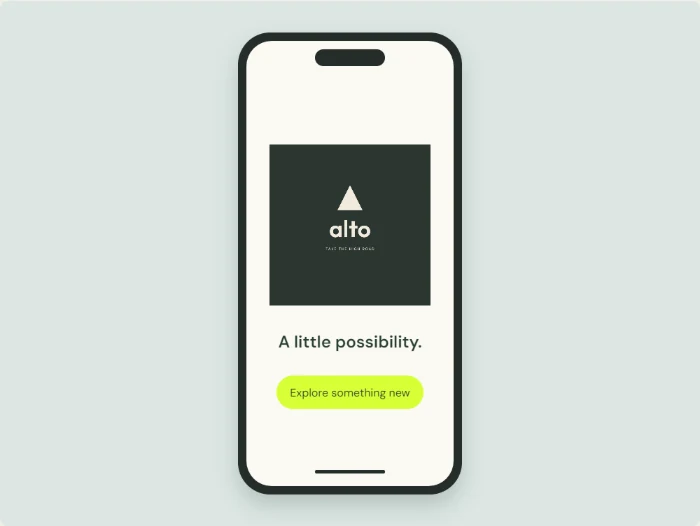 Alto · mobile scene
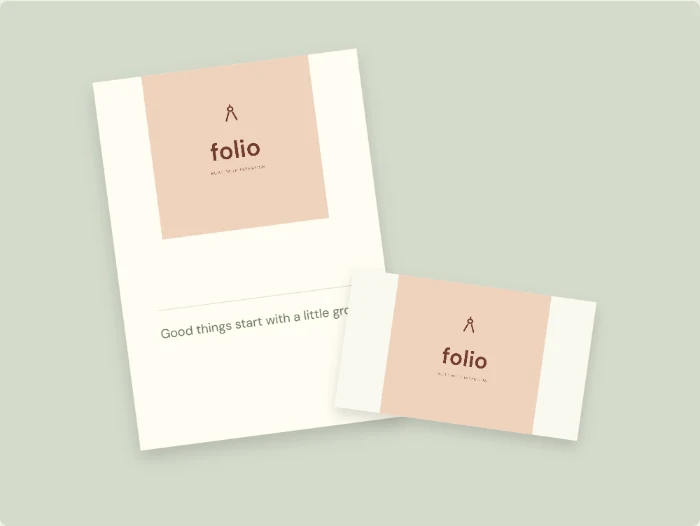 Folio · stationery scene
Inspect the downloaded files
Open the PNG or JPG outside the editor. Look for unintended backgrounds, blur in imported images, and clipped artwork. Confirm the dimensions and file type requested by the recipient. If a supplier requires SVG or vector paths, LogoDays’ raster downloads will not meet that request merely by changing the extension.
Download the editable project and reopen a copy in LogoDays. Check that the expected text, images, and layers return. Fonts need access to Google Fonts unless cached. Keep a separate backup rather than relying on browser recovery.
Record a release decision
Keep a short checklist with the version name, foreground/background colors, passed placements, and outstanding issues. Resolve spelling and readability before aesthetic preferences. For business use, separately check licensing and usage and any name or trademark concerns with an appropriate professional where needed.
If the same issue keeps returning, use the common mistakes guide or file format guide to identify the underlying cause before making more versions.