PNG vs. JPG vs. SVG: Understanding Logo File Formats
An image can look correct on screen and still be the wrong file for its next job. The key differences are whether the file preserves transparency, whether it stores pixels or shapes, and whether you can continue editing the original elements.
PNG: pixels with optional transparency
PNG stores a grid of pixels using lossless compression. It can preserve transparent areas around a logo, making it useful when artwork must sit on a website background or a document without a white rectangle.
In LogoDays, choose PNG and set Design background to Transparent if you want transparent space. Changing Preview background only changes the editor’s viewing surface. A PNG can also contain a solid background; the file extension alone does not tell you whether a particular download is transparent.
Example: export Form with a transparent design background, then place the image on the page where it will be used. Dark artwork will read on a pale surface but may disappear on a dark one. Make another color version if needed.
JPG: pixels with a filled background
JPG uses lossy compression and does not preserve transparency. It is widely supported for photographic images, but sharp text and line art can show compression artifacts. LogoDays places transparent areas on white for JPG downloads. An explicitly colored design background remains part of the design.
Use JPG when the destination specifically needs it or when a filled rectangular image is appropriate. Avoid repeatedly opening and resaving it in other applications; each additional lossy save can degrade edges. Keep the editable project and an original PNG rather than treating a JPG as your master artwork.
SVG: scalable shape instructions, when available
SVG commonly represents shapes and paths that can scale without the same pixel grid limitation. It can also contain text or embedded raster images, so an SVG extension is not a guarantee that every element is an independent vector path.
LogoDays currently does not export SVG and does not accept SVG image imports. Its symbol fonts and Fabric editor do not turn the PNG/JPG downloads into vector files. Renaming a PNG to .svg does not convert it. If a sign maker needs vector paths, ask what they require and arrange a separate vector-production workflow.
The editable project has a different job
The editable .logo.json project preserves LogoDays layers, text, transformations, design background, and mockup placements. Imported PNG/JPG content is embedded, while font families are referenced and loaded again from Google Fonts. This JSON file is for reopening in LogoDays; it is not a general-purpose vector illustration document.
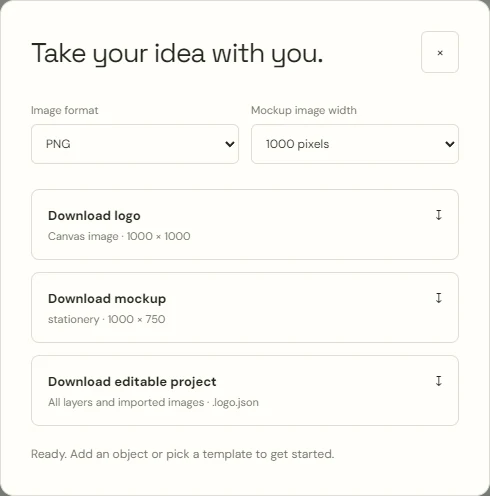
Download it before closing a project or testing a substantially different version. Browser recovery can be cleared and does not provide cross-device synchronization.
Pick dimensions for the actual use
Logo-only downloads use the current canvas width and height, shown in the Download dialog. Set those dimensions with the Canvas size control before exporting, and check object size and placement after changing them. The separate Mockup image width selector offers 500, 1000, and 2000 pixels for the illustrated scene, which has a 4:3 aspect ratio. Increasing dimensions does not recover detail missing from a low-resolution imported image.
For a small website mark, test the image at the size the site displays it, not only at its full exported dimensions. For print, ask the supplier for the required pixel dimensions and background treatment. LogoDays does not produce printer-specific color separations or guarantee that a raster export meets a supplier’s production requirements.
Use a simple handoff checklist
- Send the transparent PNG if it needs to sit on another surface, and explain whether the artwork is light or dark.
- Send a filled version if a white or colored rectangle is intentional.
- Keep the editable project with your own records for revisions.
- Confirm whether the recipient needs vector artwork before placing an order.
Use the testing guide to check the downloaded result. For profile images, follow the crop and small-size workflow rather than assuming a large export will fix a crowded composition.