Common Logo Design Mistakes and How to Avoid Them
Many logo problems appear only after the first export: a small tagline vanishes, an icon touches the crop, or a pale mark disappears on white. Review the design against its actual uses instead of adding more decoration to make it feel finished.
Trying to say everything in one mark
A name, symbol, long descriptor, location, and founding date create several competing reading tasks. Start with the name and one focal element. Add the descriptor only where it remains legible.
In LogoDays, hide a layer to compare a simpler arrangement without deleting it. Petal already combines a flower with fine serif lettering. Adding several extra lines would make the small text compete with details that need room of their own.
Judging only the enlarged canvas
At a large size, nearly every gap and stroke looks clear. Export a sample and view it at the intended display size. A 2000-pixel file shown as a small avatar still has to read in that small square.
Look at Pulse: the spaces between the equalizer bars are part of the symbol. If they merge at the intended size, use a larger symbol and a simpler arrangement. Increasing outline width may close those spaces further.
Letting the sample name dictate the proportions
Templates use short names. Replacing “petal” with a longer business name changes the balance. Reduce the text size and recenter the layer before shrinking the entire logo. If the result still needs tiny lettering, consider a name-led version and a separate symbol-only avatar.
Avoid stretching the whole word horizontally to fill a gap. It changes the typeface’s proportions. The font selection guide explains what to compare instead.
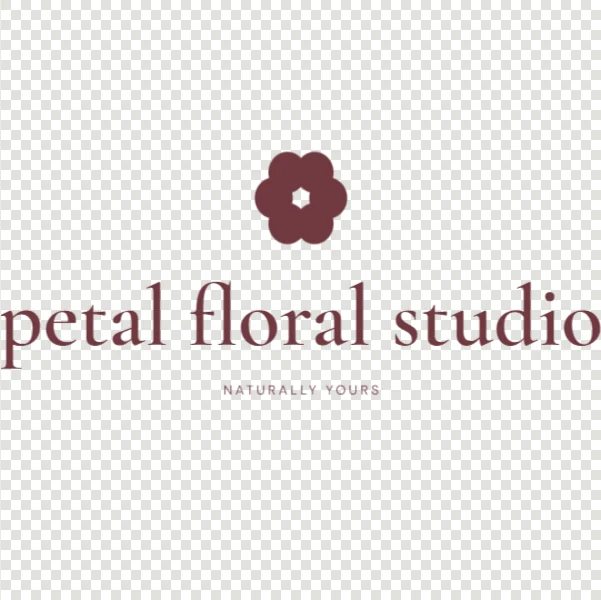 145 px · too wide
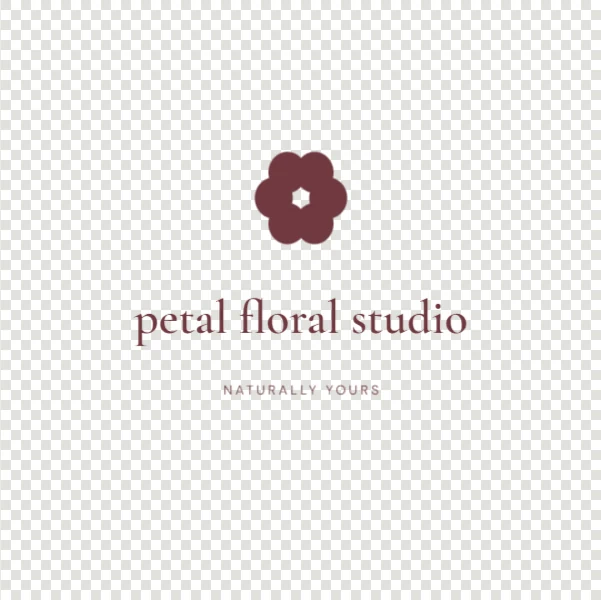 80 px · fits the canvas
Treating the preview background as artwork
The checkerboard and preview background help you inspect transparent areas; they are not exported with the logo. Use the separate Design background setting when the filled surface is intentional.
A light logo intended for a dark surface may seem to disappear in a white document. Inspect it against the destination background and make a dark companion version where necessary. JPG cannot keep transparency; LogoDays fills transparent areas with white for that format.
Using an imported image beyond its useful resolution
PNG and JPG imports remain raster content. Enlarging a tiny image does not recreate sharp edges. Prefer an appropriately sized source and inspect the export for blur. If an import contains a white rectangle, the editor does not automatically remove that background.
LogoDays may offer a resized editing copy for large images. Keep your source file separately if you will need it for another workflow. An editable project stores the imported image it contains, not every original file on your device.
Confusing familiarity with distinctiveness
A familiar leaf, cup, or equalizer can communicate a category quickly, but it may appear in many designs. Do not assume a color change makes a shared icon exclusive. Review the licensing FAQ and investigate the name and artwork before business use.
Keeping only the final image
A PNG is useful for placement, but it does not preserve separate text and symbol layers for later editing. Download the editable project as well. Name versions clearly, such as “name-dark-background” and “name-profile,” so you do not accidentally send the wrong one.
Before deciding the design is ready, run the test sequence: check the actual name, the smallest use, the crop, the background, and the reopened project. Each test should lead to a specific correction rather than another unrelated effect.