How to Design a Logo for Social Media Profiles
A profile image is a small recognition cue. It usually has less space than a website header, and some interfaces crop a square upload into a circle. Build a version for that job rather than squeezing the complete stationery design into an avatar.
Start with a square composition
Use the Canvas size selector in LogoDays to choose or enter equal width and height. Keep the important artwork near the center. A platform may show your image as a circle in one view and a square in another, so treat corners as expendable space.
Use the actual service’s current upload preview to check its crop. LogoDays does not provide a platform-specific crop simulator, and platform display requirements can change. Avoid treating a remembered upload dimension as a permanent rule.
Choose what remains visible
Try three versions: the full logo, the symbol with a short name, and the symbol alone. Hide the tagline layer first. If the name cannot be read at the intended display size, it is not helping simply because it is technically present.
Orbit has a centered ring symbol that fits a square naturally. Fern has three open leaves, whose fine outline needs more space. The same amount of scaling will not give both symbols the same small-size clarity.
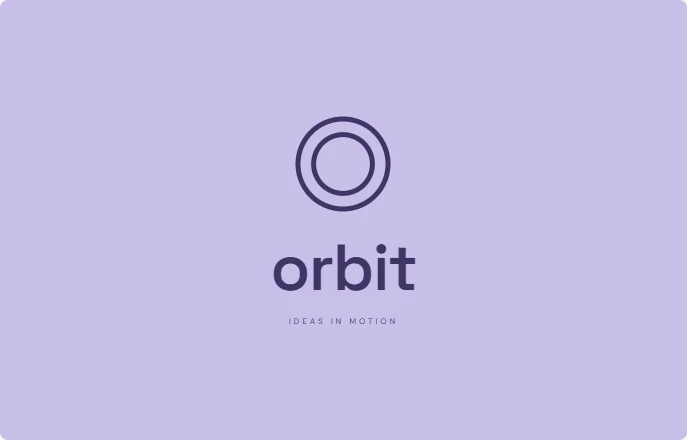 Original full logo
 Customized symbol-only crop
Protect the edges from the crop
Leave enough empty space that a circular crop cannot cut the outer points, leaf tips, or letters. Check the exported image in the destination profile editor. If the mark feels tiny, enlarge it gradually while checking those edges rather than pushing it to the square boundary.
Centering by coordinates is a useful start. Then look at the visible shape: a crescent or unevenly weighted wordmark can feel off-center even when its bounding box is centered. Make small position adjustments and compare again.
Pick a background deliberately
A transparent PNG adopts the surrounding surface wherever it is displayed. That can work for a dark mark on a known light page, but social interfaces and themes vary. A solid design background can provide a predictable square or circle of color.
Use Design background for that filled version. Preview background only affects your editing view. Try a dark-on-light and a light-on-dark version, then choose the one that remains distinguishable in the real account preview. The color guide explains why contrast matters more than assigning a fixed emotion to a hue.
Export, upload, and inspect at normal size
Set a suitable square canvas size, check the arrangement after resizing, and export a PNG for the destination’s current requirements. A larger image gives the platform pixels to work with, but it cannot make a tiny tagline readable after reduction. Inspect the avatar in a feed, on the account page, and beside other text where practical.
Look for merged line details, a crowded crop, unexpected white rectangles, and names that blur. Make one change at a time and upload a new preview. Do not judge solely from the platform’s enlarged editing window.
Keep the profile version separate
Download an editable project for the avatar and another for the complete logo. Use the same symbol and core colors across them; the profile version can omit information without becoming a different identity.
A symbol-only image does not tell a new viewer your name, so use a clear account display name and supporting profile text. Review the wordmark-versus-symbol guide when deciding what each arrangement should do, and keep the correct file formats for later revisions.